Migrate an existing SQL database from local server to Azure SQL
Create a New Azure SQL Database from Data Tier Application Export
If you want to migrate an existing SQL database from local server to Azure SQL the old style backup and restore with *.back file can not be used with Azure SQL managed database. Also the newer Import/Export Data Tier application may fails depending on the PK /FK present into the tables.
There are specific tools you can use to migrate an existing database to Azure SQL.
- “Deploy to Azure” .
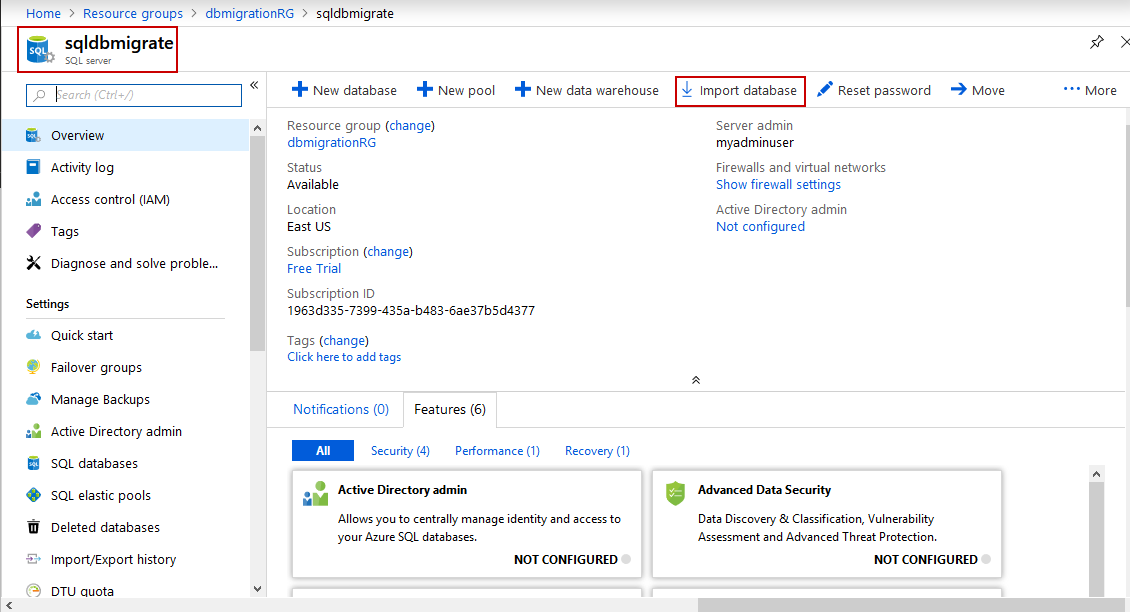
- “Import Database”
- Data Migration Assistant (DMA)
The first step is in both cases to create a backpack file with “Export Data Tier Application”
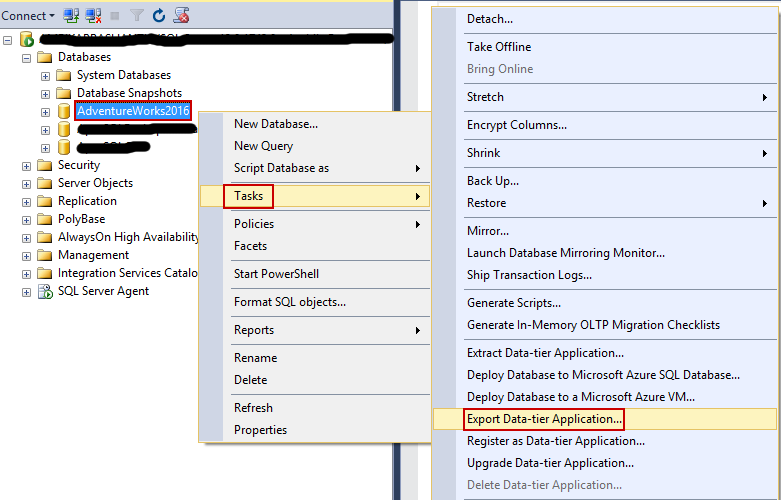
Deploy database to Microsoft Azure SQL
If you can not connect to Azure from the original server you may restore a copy of the original DB in PC connected to Internet and the from here run “Deploy Database to Azure SQL”.
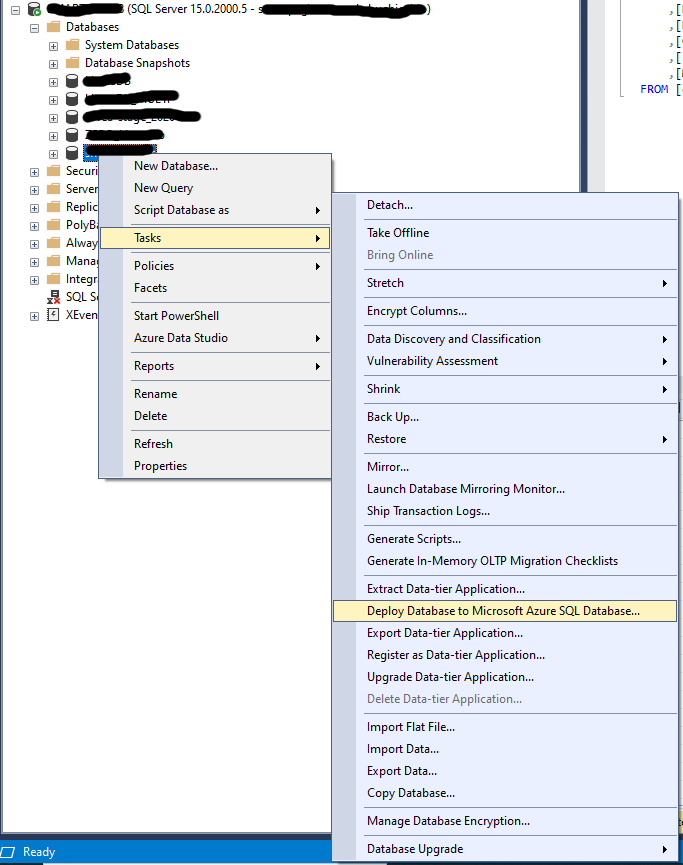
Follow the wizard and fill all required field
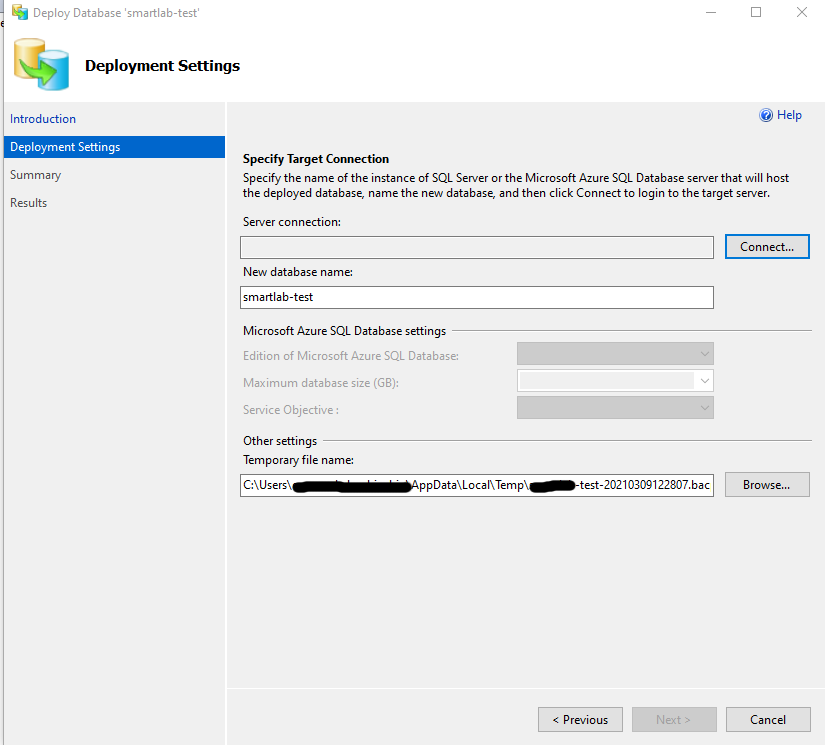
You need to connect to Azure SQL server with a user with privileges to create a new database such as a user with role “contributor” assigned in RBAC.
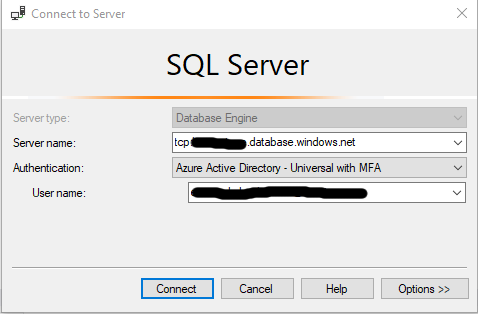
Please nota that you must select the appropriate authentication type from the drop-down list. Multi Factor Authentication (MFA) is active for may account so “Azure Active Directory” is the correct one from me.
Then the appropriate service plan for the new database. Nota that these settings can be changed later after deploy completed.
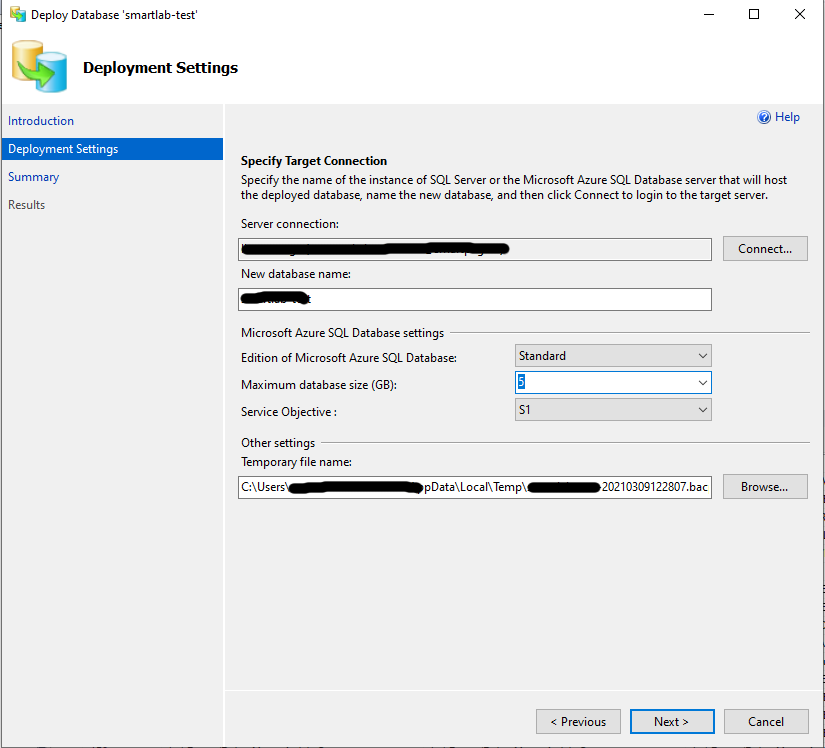
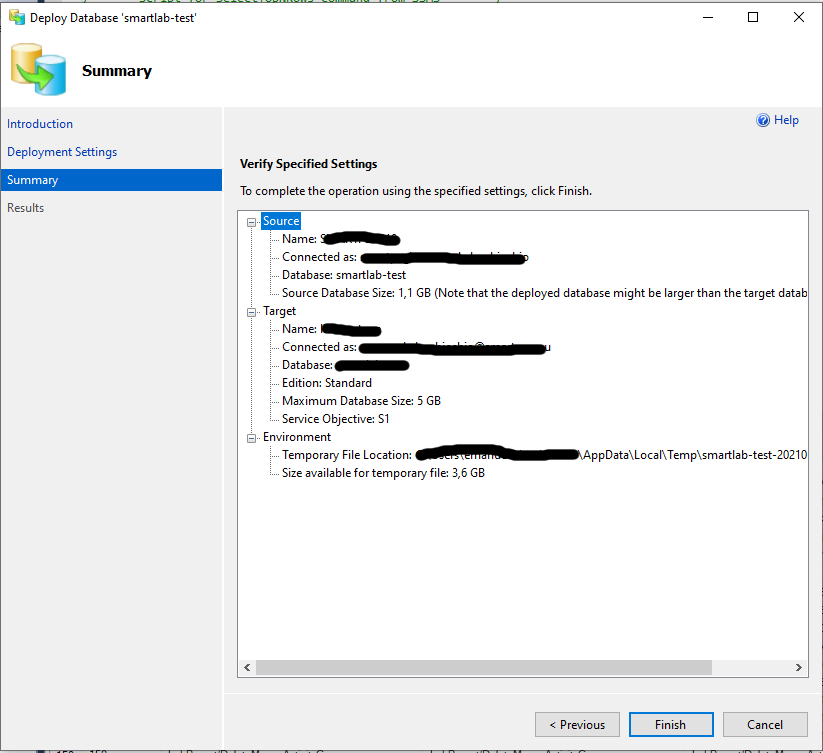
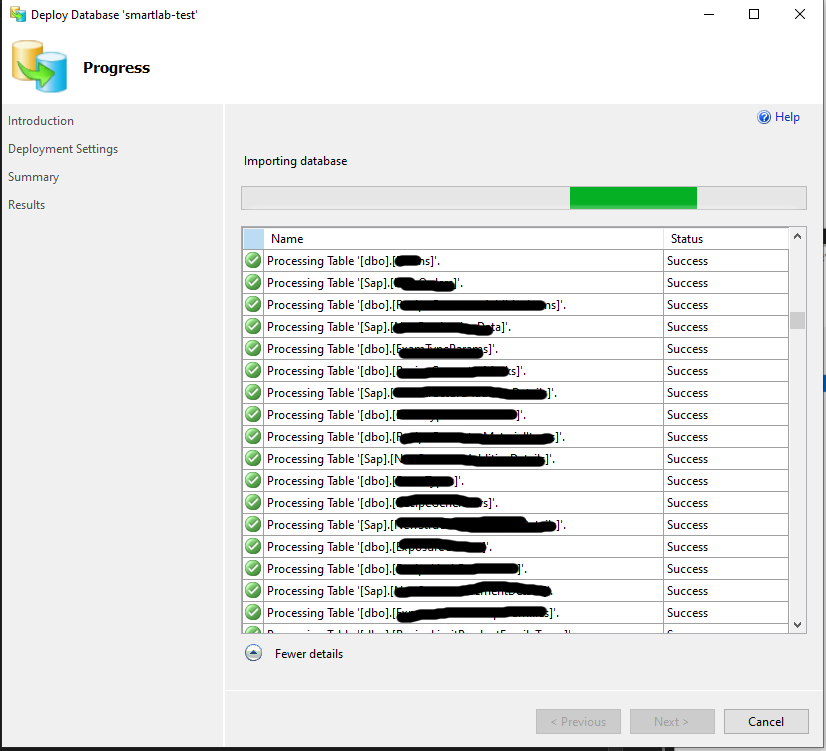
Review deploy setting and click “Finish”. When you do, you will see the progress of the migration, step by step while waiting until completed.
As you can see above, there are number of steps. You can also see that there is a step named “Processing Table”. This step will show each table as it is processed and migrated to Azure SQL Database.
Import Database
TBC
Data Migration Assistant
This is a relatively easy tool to use. It really has two purposes.
- identify what challenges you might encounter when migrating at database
- actually complete the migration.
This is a tool the must be downloaded and installed before using. Once installed you will find it as “Microsoft Data Migration Assistant” in the Start menu, not under the SQL Server items.
Enjoy Reading This Article?
Here are some more articles you might like to read next:
- Il ritorno dei classificatori: i modelli di decisione
- Il pianeta dei desideri: cosa ci insegna Pianeta Proibito sugli LLM
- OpenWorker: un agente AI open source che gira dove decidi tu
- Audit delle licenze nei progetti con componenti di terze parti
- LLM Wiki con Obsidian - come iniziare in meno di 10 minuti
- Creare un LLM Wiki con Obsidian
- Cosa è un LLM Wiki
- Dal Vibe Coding all'Agentic Software Engineering: la differenza non è di strumento ma di postura professionale
- Umano o Sintetico? Il Valore di un Testo va Oltre la sua Origine
- La norma UNI 11621-8 e le professioni AI